Task: Getting started with Published Apps
-
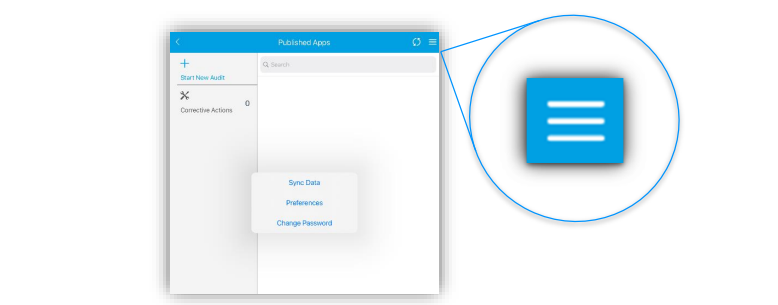
When you first load into our app templates take note of the burger menu in the top-right and the
‘Start New Audit’ Button. This allows you to access various functions.
-
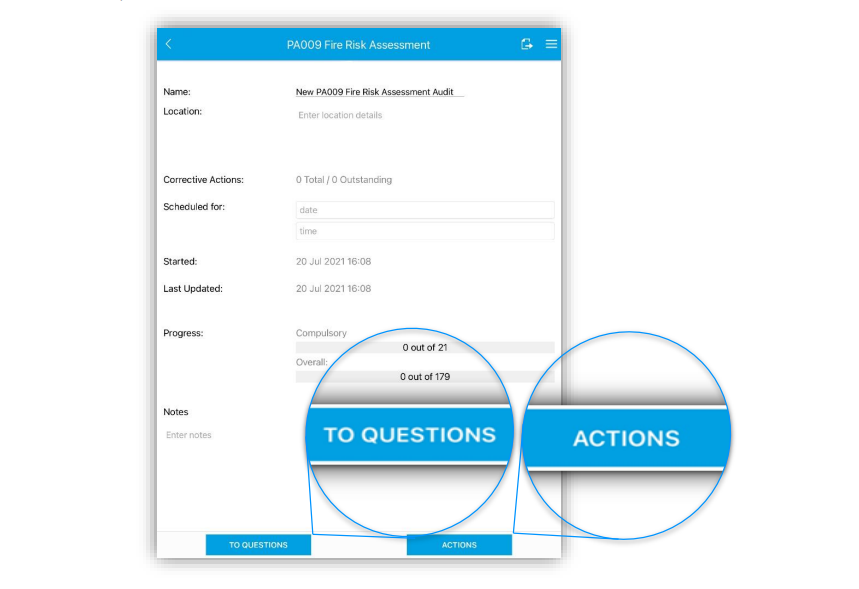
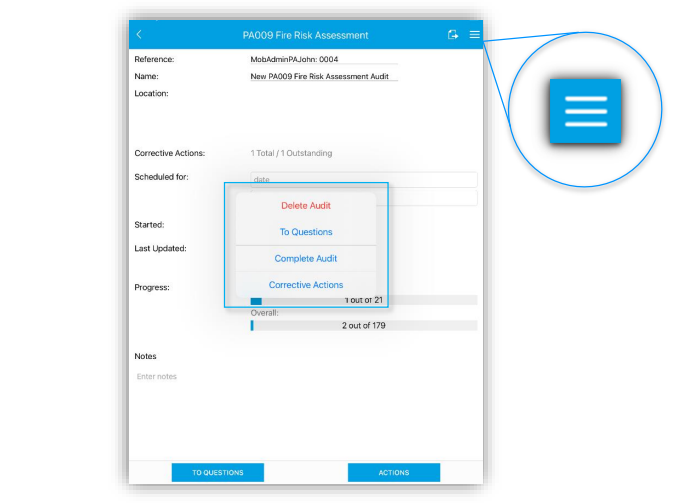
Once you start a new inspection / assessment you will see a summary frontpage – this can be
edited with location information, scheduled date and time, plus shows a summary of completion
status while in progress and a total count of any corrective / follow-up actions raised. At the bottom
you will see two buttons which take you to the main survey questions, or the list of corrective actions
for this inspection / assessment.
-
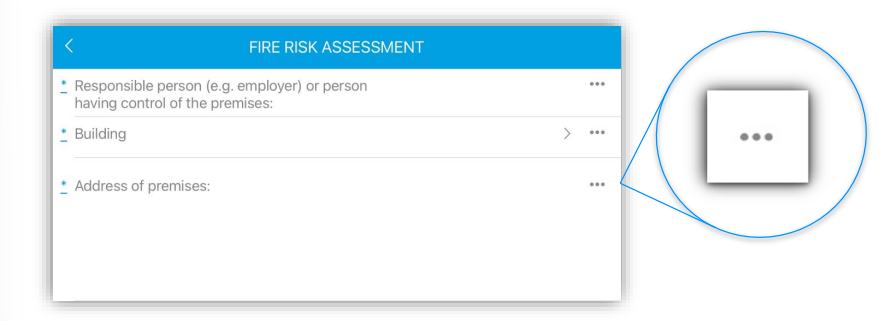
Navigating through the questions and inputs should be relatively straightforward. Using the Fire Risk
Assessment Template an example, each group of questions is split into defined sections which you
can tap through in sequence to show the full list of answerable questions and input types.
-
Next to each question you will see 3 dots on the right-side which takes you to a details page – here
additional question-specific evidence/information can be entered.
-
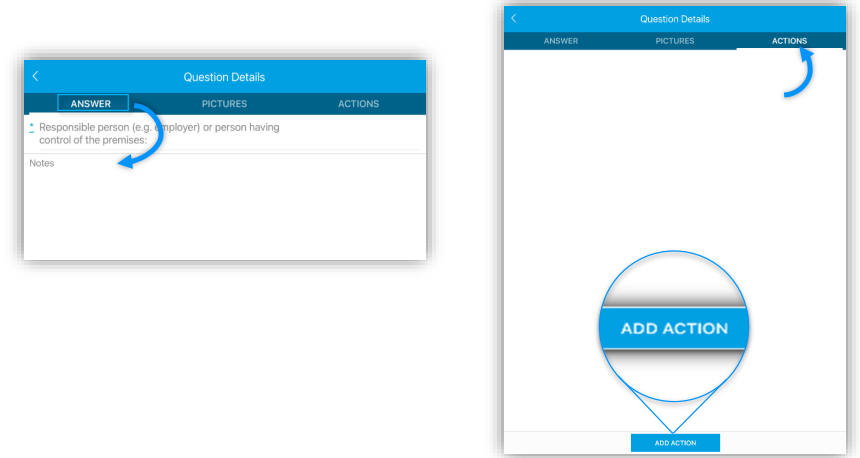
From the question details screen you can enter additional info related just to that specific question,
including:
o text notes providing additional clarity or any relevant supporting information
o photos/images to support the answer with additional detail
o create any follow-up actions needed as a result of a question failure/warning
-
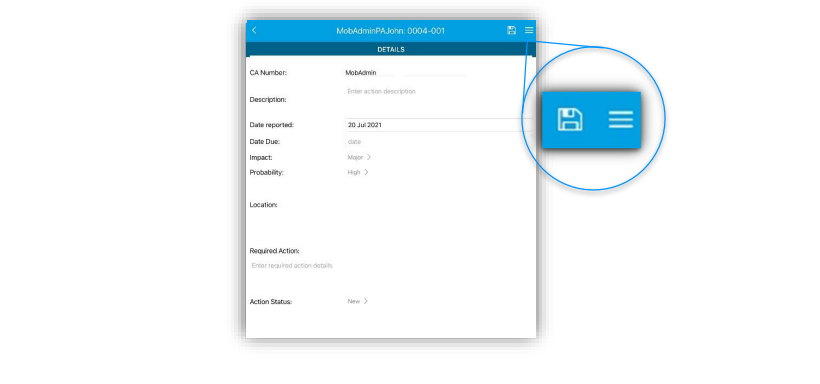
Adding corrective actions is also straightforward, you will see a new window appear which can be
populated with a description of the required action, along with impact and probability.
-
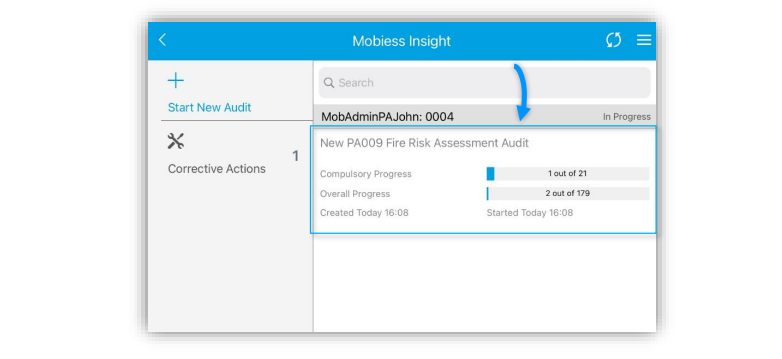
Once you have one or more assessments/inspections underway you will find them listed on the front screen of our app with a short summary below each one to identify.
-
From the summary page again using the burger menu in the top-right you can mark the audit as
complete or delete an audit in-progress if it is no longer required. (e.g., for testing or demo
purposes)